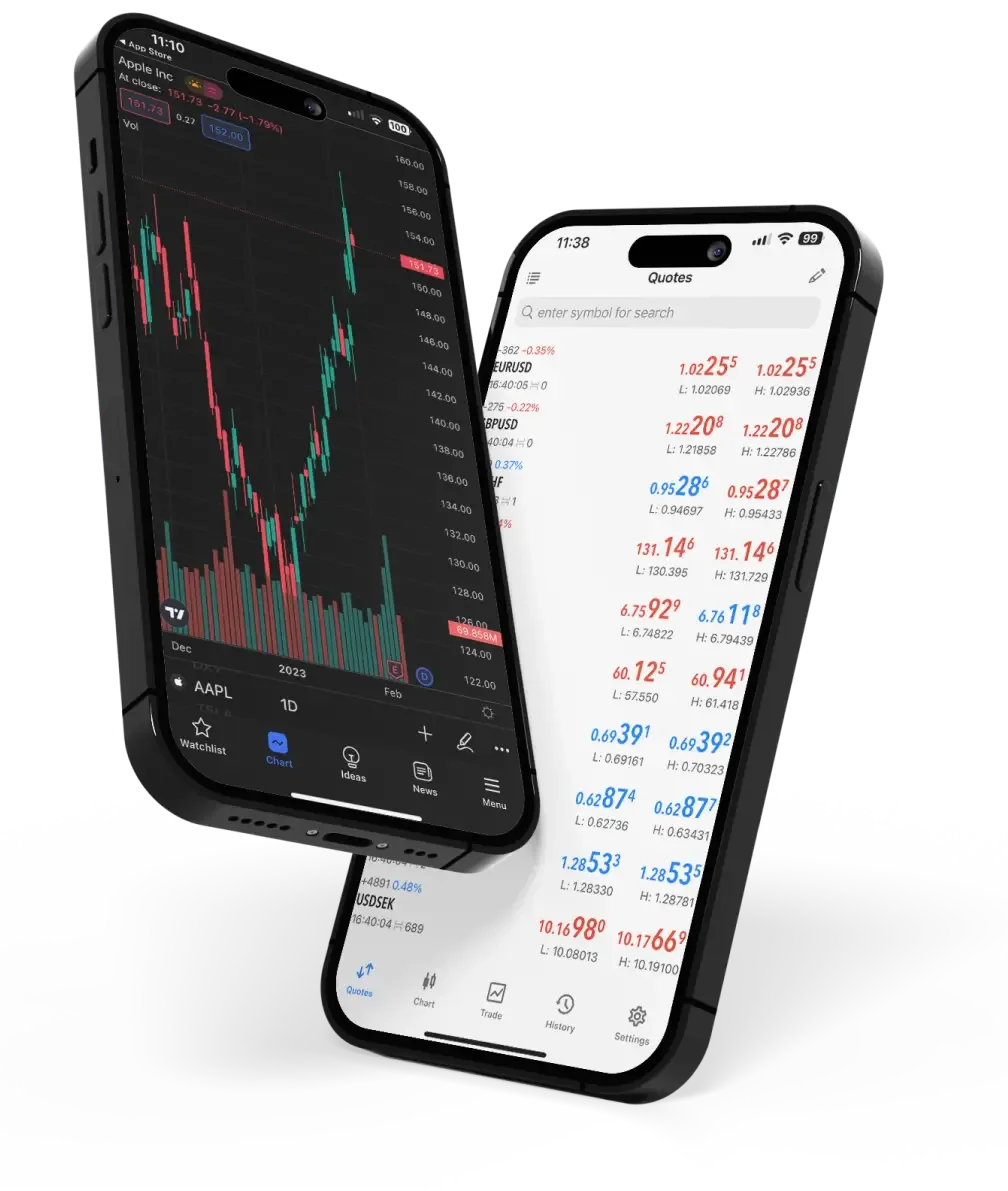
MetaTrader 4 (MT4) is one of the most widely used trading platforms in the world, renowned for its comprehensive tools and user-friendly interface. Whether you’re a novice trader or a seasoned professional, understanding the MT4 user interface can significantly enhance your trading experience. This guide will walk you through the key components of the metatrader 4 for windows interface, ensuring you can navigate the platform with confidence.
Key Components of the MT4 Interface
1. The Toolbar
The toolbar at the top of the MT4 interface provides quick access to essential functions and features. Here, you can find buttons for opening new charts, placing orders, and accessing indicators and other trading tools. Familiarize yourself with these icons to streamline your trading activities.
2. Market Watch Window
Located on the left side of the interface, the Market Watch window displays a list of available trading instruments along with their bid and ask prices. You can add or remove instruments from this list by right-clicking within the window and selecting “Symbols.” This window also allows you to open new order windows and chart windows by right-clicking on any instrument.
3. Navigator Window
Below the Market Watch window, the Navigator window provides quick access to your accounts, indicators, expert advisors, and custom scripts. This window is essential for managing your trading accounts and deploying automated trading strategies.
4. The Chart Window
The central area of the MT4 interface is dominated by the chart window, where you can view price movements and apply technical analysis tools. You can open multiple chart windows simultaneously, allowing you to monitor various instruments at once. Customize your charts by right-clicking within the window and selecting “Properties” to adjust colors, timeframes, and other settings.
5. Terminal Window
At the bottom of the interface, the Terminal window displays crucial information about your trading activities. This includes open trades, account history, alerts, and more. Each tab within the Terminal window provides specific insights, making it an invaluable tool for managing your trading operations.
6. Status Bar
The status bar at the bottom of the interface provides real-time updates on your connection status, server time, and other critical information. Keep an eye on this bar to ensure your platform is functioning correctly.
Tips for Customizing Your MT4 Interface
• Adjust Chart Settings: Right-click on the chart window to access properties and customize the appearance to suit your preferences.
• Utilize Templates: Save your preferred chart settings as templates for quick application to other charts.
• Organize Windows: Use the “Window” menu to arrange multiple chart windows in a way that maximizes your workspace efficiency.
By familiarizing yourself with these key components and customization tips, you can make the most of the MetaTrader 4 platform. A well-organized and comprehensible interface can significantly enhance your trading efficiency and effectiveness, setting you on the path to success.